Publish Date
25 Apr, 26
How to Use the Pixel / Scripts Feature in CutMe Short - A Complete 2026 Guide
Yash Khandelwal
Tracking what happens after someone clicks your short link is where most marketers leave value on the table. Every click is a warm signal — someone curious enough to tap your link. With CutMe Short's Pixel / Scripts feature you can capture that moment, drop a tracking pixel during the redirect, and rebuild that visitor as a retargetable audience on Google Ads, Meta, LinkedIn, TikTok, X, Reddit, and any other ad network that gives you a JavaScript snippet.
This guide walks through the feature end-to-end: where it lives, how to set it up, how it actually works under the hood, and a few real-world plays you can copy.
Why pixel-on-link tracking matters
A typical retargeting pixel only fires when a visitor lands on a page you own. If you're a creator sharing a YouTube video, a podcast host pointing at Spotify, or a brand running an influencer campaign, that pixel never gets a chance to fire — the click goes straight to a third-party site you don't control.
A pixel attached to a short link closes that gap. The pixel fires the instant someone clicks your branded short URL, regardless of where the link is shared or where it redirects to. The result:
A retargetable audience built from people who clicked your link in someone else's email, tweet, podcast description, or Slack
Lookalike-audience seed data even when you don't own the destination
Attribution on top-of-funnel touchpoints that normally vanish
Step-by-step: Adding pixels to a link in CutMe Short
The Pixel / Scripts panel is built into both the Create Link and Edit Link flows. The steps are identical for both.
1. Open Create Link or Edit Link
From the CutMe Short homepage you have two paths:
New link: Click Create Link and paste your destination URL into the long-URL field at the top.
Existing link: Find the link in your dashboard, click the edit icon, and the dialog opens with the destination already filled in.
2. Locate the Pixel / Scripts tab
Once a destination URL is in place, scroll to the bottom-tabs row inside the dialog. You'll see a tab labelled Pixel / Scripts. Click it.
3. Add your tracking script
A panel opens with the heading:
Pixel / Scripts
Add up to 5 tracking pixels or scripts. Each entry supports a label and the script code.
No pixel/script added yet. — 0/5 entries
Click Add pixel/script and you'll get two fields:
Label — a short, human-readable name for the pixel. Use something you'll recognise three months from now:
Meta — Q2 Launch,Google Ads — AW-123456789,LinkedIn Insight Tag.Script code — the full
<script>...</script>block exactly as your ad platform gives it to you. Don't strip the tags, don't summarise it, don't only paste the ID number.
4. Repeat for up to 5 pixels per link
CutMe Short supports up to 5 pixels per link. That's enough to cover Google Ads, Meta, LinkedIn, X, and one custom GTM container in a single short URL — handy for a launch campaign you want to retarget on multiple networks.
5. Save
Click Save. Your short link now fires every attached pixel during the redirect, before the visitor reaches the destination.
That's the whole flow on the CutMe Short side. The interesting part is what to put in the Script field — and how to verify it's actually working.
How it works behind the scenes
Browsers don't run JavaScript on a 301 / 302 redirect. So a short-link service that wants to fire a pixel can't use a pure HTTP redirect — it has to do something cleverer.
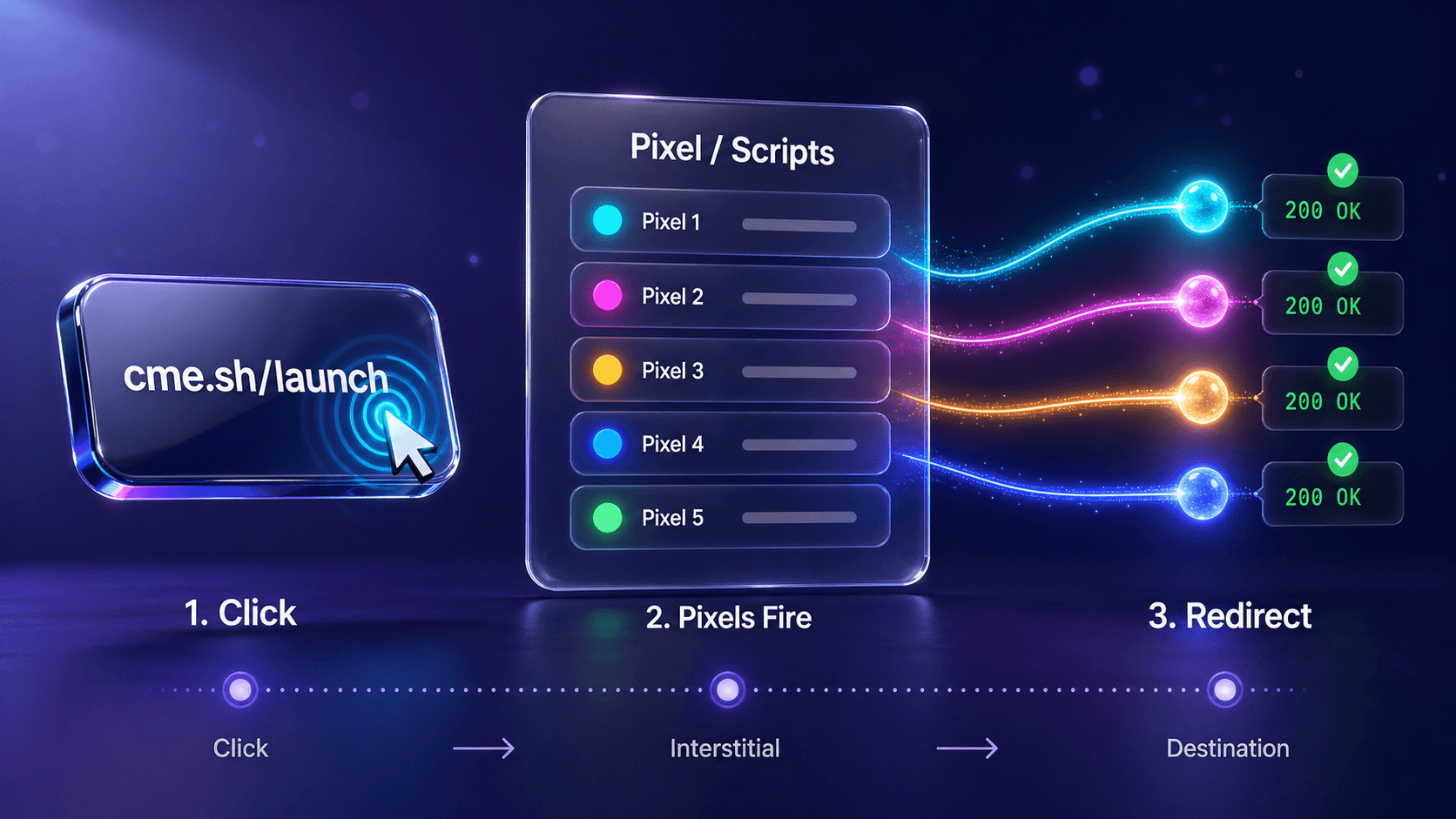
When someone clicks a CutMe Short link with pixels attached, the request is served a tiny HTML interstitial page that:
Loads each of your pixel scripts in parallel
Lets them ping their respective ad networks (
facebook.com/tr,googleadservices.com,linkedin.com/li.lms-analytics, etc.)Triggers a
window.locationredirect to the destination
The interstitial is invisible to most visitors — it resolves in well under half a second on a normal connection — but those few hundred milliseconds are enough for every pixel to register the visit on the ad network's side. The destination page loads next, exactly as the visitor expects.
Use case 1: Google Ads remarketing
Goal: Build a Google Ads "data segment" (the new name for remarketing list) of everyone who clicks a short link you share in podcast notes, an influencer campaign, or a guest blog.
Get the snippet (2026 UI)
Open Google Ads → click the Tools icon in the left rail → Data Manager
Under Connected products, find the Google Ads tag card → View details
Click Tag setup → Install the tag yourself
Copy the entire
<script>block. It looks like this:
(Older accounts may still see the legacy path — Tools → Shared library → Audience manager → Audience sources → Google tag → Set up tag. Both paths produce the same snippet.)
Add it to a CutMe Short link
Paste the full snippet into the Script code field, label it Google Ads — AW-123456789, save.
Verify it fires
Install the Tag Assistant Chrome extension (the unified one from Google — replaces the deprecated Tag Assistant Companion).
Click the Tag Assistant icon → Add domain → enter your CutMe Short redirect domain → Start.
In the new debug window, paste your short link and press Enter.
Tag Assistant captures the interstitial. In the Tags Fired panel you should see your
AW-XXXXXXXXXtag with a green checkmark and the request payload.
Confirm Google Ads received it
Tools → Data Manager → Google Ads tag → Details → Tag activity — counter should tick up within 1–2 minutes of your test click.
Tools → Shared library → Audience manager → Your data segments — your segment size should grow within 15–30 minutes (multiple test visitors recommended; segments often need a minimum of 100 users before they're usable in a campaign).
Build the audience
Once the segment is populating, attach it to a campaign as an audience for Search (Observation or Targeting) or Display (where it shines for true retargeting).
Use case 2: Meta (Facebook + Instagram) retargeting
Goal: Capture every clicker into a Meta Custom Audience to retarget across Facebook, Instagram, Reels, and Audience Network.
Get the snippet
Open Meta Events Manager → Data sources → click your Pixel
Click ... (overflow) → View pixel code
Copy the full base-code block:
Replace 1234567890123456 with your actual Pixel ID.
Add it to your link
Paste, label as Meta — Brand Pixel, save.
Verify
Meta Pixel Helper Chrome extension (v4.0.1, current as of Feb 2026): click the icon while the interstitial loads. To slow the redirect long enough to inspect, open DevTools → Network tab → enable Offline, then click the link — the interstitial stays on screen. The extension shows ✓ green for
PageViewalong with your Pixel ID.Events Manager → your Pixel → Test Events tab: generate a test event code, append
?fbc_test_event_code=YOURCODEto the short URL, click it, and the event appears in the test stream within seconds.
Build the audience
In Ads Manager, Audiences → Create audience → Custom audience → Website — pick "Anyone who visited" and select your Pixel. Use a 30/90/180-day window depending on consideration cycle.
Use case 3: LinkedIn Insight Tag (B2B)
For B2B short-link campaigns — say, an industry whitepaper hosted on a third-party CMS — drop the LinkedIn Insight Tag in:
LinkedIn Campaign Manager → Analyze → Insight Tag → copy the full
<script>blockPaste into a CutMe Short Pixel / Scripts entry, label
LinkedIn Insight, saveVerify with LinkedIn Insight Tag Helper Chrome extension
Build matched audiences in Campaign Manager: Plan → Audiences → Create audience → Website → People who visited specific pages
Use case 4: GTM as a multi-pixel container (5+ pixels)
If you've already hit the 5-pixel limit and need more, paste a single Google Tag Manager container snippet instead. Inside GTM you can fire as many tags as you like (Twitter/X, TikTok, Reddit, Pinterest, Snap, Quora, custom HTML). The CutMe Short pixel slot effectively becomes one container that holds all your tags.
Use Tag Assistant + GTM Preview Mode to verify each child tag fires inside the interstitial.
Best practices and gotchas
Use unique labels. "Meta Pixel" is useless when you have three Meta accounts. Use the Pixel ID or campaign name in the label.
Test in incognito. Cached cookies and ad-blockers in your daily browser will lie to you. Always test in a clean incognito window with extensions disabled (except your debug tool).
Respect consent. If your audience is in the EU/UK, your pixels need to be gated behind a Consent Mode v2 implementation. CutMe Short fires whatever script you paste — make sure that script is consent-aware before you use it on traffic from regulated regions.
Don't track sensitive destinations. Don't attach a marketing pixel to a link that points to a healthcare, finance, or password-reset URL. Many ad networks explicitly prohibit it under their data-policy terms.
Segment by funnel stage. Different short links for awareness (cold-traffic blog) vs. consideration (case study) vs. action (pricing page). Build separate audiences for each — the retargeting copy should be different.
Watch for double-firing. If the destination page also has the same pixel installed, you'll see two PageView events. Most networks dedupe automatically, but verify in Test Events / Audience Manager activity.
Mobile Safari + iOS. Apple's Intelligent Tracking Prevention shortens cookie lifetime drastically. Audiences will still build but lookback windows are effectively capped at 7 days.
A 2-minute smoke test before you ship
Create a test short link → destination
https://example.com→ attach one pixel → save.Open an incognito window → DevTools → Network tab → tick Preserve log.
Filter the network panel by the ad network's domain (
facebook.com/tr,google.com/pagead,linkedin.com/li).Paste your short link → press Enter.
You should see the pixel request before the redirect to the destination, returning 200 (or 204 for Meta's
trendpoint).
If you see that single request, the feature is working. Everything else — segment size, Test Events, attribution — is just deeper verification.
Wrap-up
The Pixel / Scripts feature turns every short link you publish into a retargeting funnel of its own. Five slots per link means a single launch URL can simultaneously feed Google Ads, Meta, LinkedIn, X, and a GTM container. Once you've verified the pixel fires with Tag Assistant or your platform's debugger, the audience builds itself in the background while the link does its real job — driving the click.
Set it up once, verify with the 2-minute smoke test, and let the warm-audience pipeline run.