
How to Use the Pixel / Scripts Feature in CutMe Short - A Complete 2026 Guide
A complete guide to using CutMe Short's Pixel / Scripts feature to fire tracking pixels during short-link redirects, build retargeting audiences, and measure campaign engagement across ad platforms.
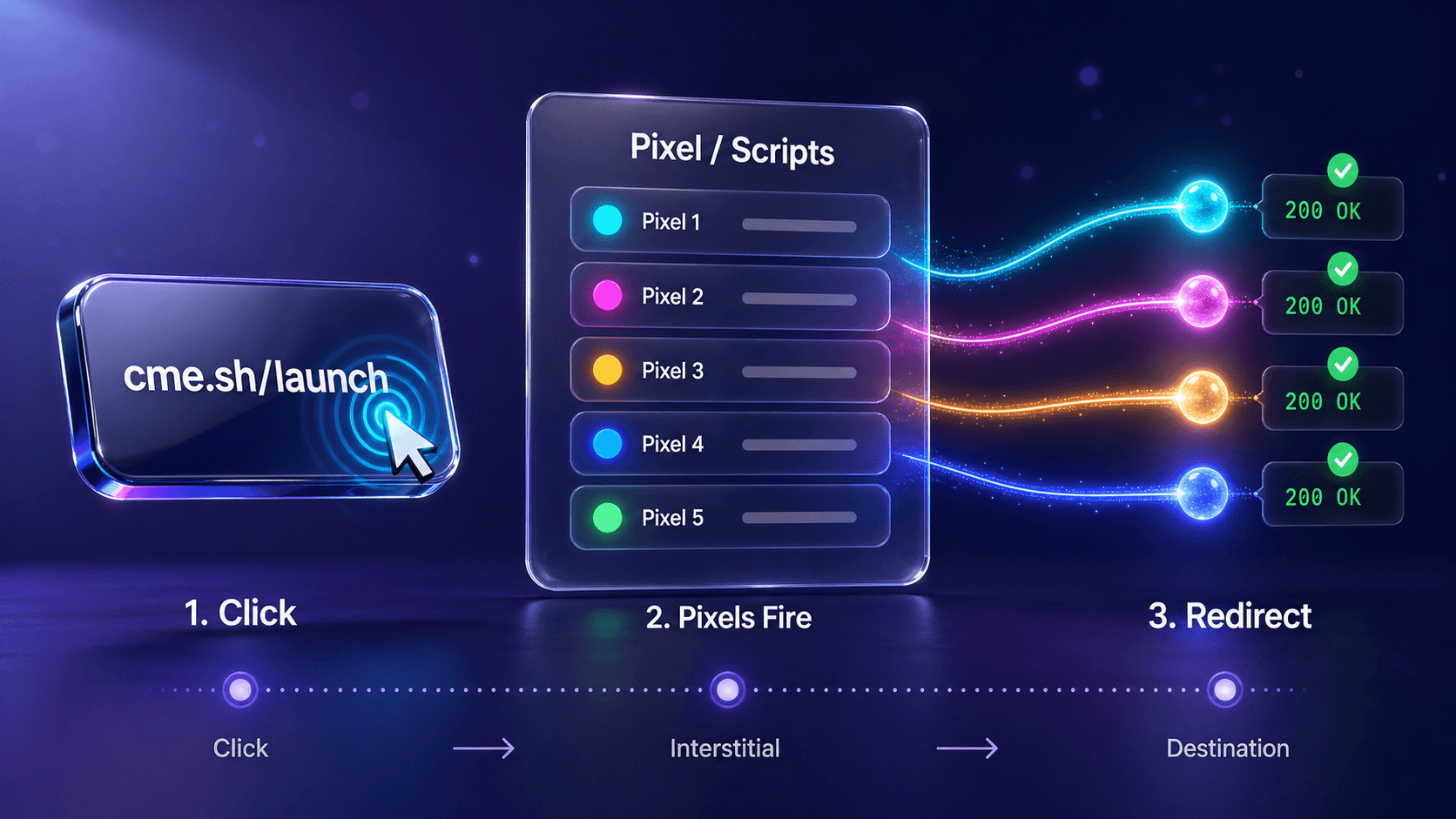
Tracking what happens after someone clicks your short link is where many marketers leave value on the table.
Every click is a warm signal. It means someone was interested enough to tap your link. With the Pixel / Scripts feature in CutMe Short, you can capture that moment, add a tracking pixel during the redirect, and build retargeting audiences across platforms like Google Ads, Meta, LinkedIn, TikTok, X, Reddit, and any ad network that gives you a JavaScript snippet.
This guide explains how CutMe Short's Pixel / Scripts feature works, how to add pixels to your links, how to verify that your tracking scripts are firing, and how to use the feature for real marketing campaigns.
Quick Answer
The Pixel / Scripts feature in CutMe Short lets you attach tracking pixels or JavaScript snippets to short links. When someone clicks the short link, CutMe Short briefly loads the tracking scripts before sending the visitor to the final destination. This helps you build retargeting audiences, improve attribution, and track engagement even when the destination page is not owned by you.
What You Will Learn
By the end of this guide, you will know how to:
- Add tracking pixels to new and existing CutMe Short links
- Use the Pixel / Scripts tab inside the Create Link and Edit Link flows
- Add up to 5 pixels or scripts per short link
- Use pixels for Google Ads, Meta, LinkedIn, and Google Tag Manager
- Understand how pixel-on-link tracking works during redirects
- Verify that your pixels are firing correctly
- Run a quick 2-minute smoke test before launching a campaign
- Follow best practices for labels, testing, consent, and performance
What Is the Pixel / Scripts Feature in CutMe Short?
The Pixel / Scripts feature allows you to add tracking pixels or JavaScript snippets directly to a CutMe Short link.
Instead of placing a pixel only on your website, you can attach it to the short link itself. When someone clicks that short link, your tracking script fires during the redirect process.
This is useful when you want to track or retarget people who click links shared across:
- Social media posts
- Influencer campaigns
- Podcast descriptions
- Guest blogs
- Email newsletters
- Community posts
- WhatsApp campaigns
- Partner promotions
- Third-party pages you do not control
In simple terms, the feature helps you turn a normal short link into a trackable and retargetable marketing asset.
Why Pixel-on-Link Tracking Matters
A normal retargeting pixel usually fires only when a visitor lands on a page you own.
That creates a problem.
If you are sharing a YouTube video, Spotify podcast, marketplace product page, affiliate offer, partner landing page, or any third-party destination, your website pixel may never fire because the user does not visit your own website.
A pixel attached to a short link helps close that gap.
The pixel fires when someone clicks your branded short URL, even if the final destination is a third-party website.
Key Benefits
| Benefit | Why It Matters |
|---|---|
| Build retargeting audiences from link clicks | Capture warm visitors even before they reach the final destination |
| Track top-of-funnel engagement | Measure interest from social posts, podcasts, newsletters, and influencer campaigns |
| Improve campaign attribution | Understand which short links are generating useful engagement |
| Use third-party destinations more effectively | Retarget people even when you do not own the landing page |
| Create lookalike audience seed data | Use clickers as a base for future ad audiences |
| Run multi-network campaigns | Add pixels for different ad platforms to the same short link |
If someone clicked your link, they showed intent. Pixel-on-link tracking helps you use that intent more intelligently.
How to Add Pixels to a Link in CutMe Short
The Pixel / Scripts panel is available inside both the Create Link and Edit Link flows.
The steps are almost the same whether you are creating a new short link or updating an existing one.
Step 1: Open Create Link or Edit Link
From your CutMe Short dashboard, you have two options.
For a New Link
Click Create Link and paste your destination URL into the long URL field.
For an Existing Link
Find the link in your dashboard and click the edit icon. The edit dialog opens with your existing destination URL already filled in.
Step 2: Locate the Pixel / Scripts Tab
After adding or confirming the destination URL, scroll to the bottom tabs inside the dialog.
Click the tab labeled Pixel / Scripts.
This is where you can add tracking scripts for that specific short link.
Step 3: Add Your Tracking Script
Inside the Pixel / Scripts panel, you will see an option to add a pixel or script.
The panel supports:
- A label for each pixel or script
- The full script code
- Up to 5 entries per short link
Click Add pixel/script.
You will get two fields.
Label
The label is a short name that helps you recognize the script later.
Good labels include:
Meta — Q2 Launch
Google Ads — AW-123456789
LinkedIn Insight Tag
GTM — Launch Campaign
TikTok Pixel — Summer Offer
Avoid vague labels like Pixel or Script. They become confusing when you manage multiple campaigns.
Script Code
Paste the full script code exactly as your ad platform gives it to you.
For example, paste the complete:
<script>
  // Your tracking script here
</script>
Do not paste only the pixel ID unless your platform specifically asks for only the ID. For CutMe Short's Pixel / Scripts feature, you should usually paste the full script block.
Step 4: Repeat for Up to 5 Pixels Per Link
CutMe Short supports up to 5 pixels or scripts per link.
This is useful when you want one short link to send click signals to multiple platforms, such as:
- Google Ads
- Meta
- X
- Google Tag Manager
For example, a launch campaign URL can feed multiple retargeting platforms at the same time.
Step 5: Save the Link
After adding your pixel labels and script code, click Save.
Your short link will now fire the attached pixels during the redirect before the visitor reaches the final destination.
How Pixel / Scripts Works Behind the Scenes
Browsers do not run JavaScript on a pure 301 or 302 redirect.
So, when a short-link service needs to fire a pixel, it cannot rely only on a standard HTTP redirect.
When someone clicks a CutMe Short link with pixels attached, CutMe Short serves a lightweight HTML interstitial page that:
- Loads your attached pixel scripts
- Allows those scripts to send requests to their ad networks
- Redirects the visitor to the final destination using
window.location
For most visitors, this happens quickly and feels like a normal redirect.
Those few moments are enough for the pixel request to register with platforms like Google Ads, Meta, LinkedIn, or your Google Tag Manager container.
The visitor still reaches the final destination as expected. The difference is that your tracking script gets a chance to fire before the redirect completes.
Use Case 1: Google Ads Remarketing
Goal
Build a Google Ads remarketing audience of people who click your short link from a podcast, influencer campaign, guest blog, email campaign, social post, or community placement.
Get the Google Ads Snippet
In Google Ads, copy the Google tag snippet from your account.
A typical Google tag snippet looks like this:
<!-- Google tag (gtag.js) -->
<script async src="https://www.googletagmanager.com/gtag/js?id=AW-123456789"></script>
<script>
  window.dataLayer = window.dataLayer || [];
  function gtag(){dataLayer.push(arguments);}
  gtag('js', new Date());

  gtag('config', 'AW-123456789');
</script>
Replace AW-123456789 with your actual Google Ads tag ID.
Add It to CutMe Short
In CutMe Short:
- Open Create Link or Edit Link
- Open the Pixel / Scripts tab
- Click Add pixel/script
- Use a label like
Google Ads — AW-123456789 - Paste the full Google tag snippet
- Save the link
Verify That It Fires
You can verify the Google Ads tag using a debugging tool such as Google Tag Assistant or your browser DevTools.
A simple verification flow:
- Open an incognito window
- Open DevTools and go to the Network tab
- Enable Preserve log
- Click your CutMe Short link
- Look for a Google Ads or Google tag request before the final redirect
If the request appears before the destination page loads, your Google Ads pixel is firing.
Build the Audience
Once your tag is firing, use Google Ads audience tools to build a retargeting audience from visitors who triggered the tag.
This audience can be used for remarketing campaigns, observation audiences, display campaigns, and future audience insights.
Use Case 2: Meta Pixel Retargeting
Goal
Capture people who click your short links and retarget them across Meta platforms such as Facebook, Instagram, Reels, and Audience Network.
Get the Meta Pixel Snippet
From Meta Events Manager, copy your Meta Pixel base code.
A typical Meta Pixel snippet looks like this:
<!-- Meta Pixel Code -->
<script>
  !function(f,b,e,v,n,t,s)
  {if(f.fbq)return;n=f.fbq=function(){n.callMethod?
  n.callMethod.apply(n,arguments):n.queue.push(arguments)};
  if(!f._fbq)f._fbq=n;n.push=n;n.loaded=!0;n.version='2.0';
  n.queue=[];t=b.createElement(e);t.async=!0;
  t.src=v;s=b.getElementsByTagName(e)[0];
  s.parentNode.insertBefore(t,s)}(window, document,'script',
  'https://connect.facebook.net/en_US/fbevents.js');

  fbq('init', '1234567890123456');
  fbq('track', 'PageView');
</script>
Replace 1234567890123456 with your actual Meta Pixel ID.
Add It to CutMe Short
In the Pixel / Scripts tab:
- Add a new script
- Label it
Meta — Brand Pixel - Paste the full Meta Pixel code
- Save the link
Verify That It Fires
You can verify using Meta Pixel Helper, Meta Events Manager, or browser DevTools.
In DevTools, check for a request to:
facebook.com/tr
If the request appears before the redirect completes, the Meta Pixel is firing.
Build the Audience
Inside Meta Ads Manager, create a website Custom Audience using your pixel.
You can then retarget people who clicked your short link with Facebook and Instagram ads.
Use Case 3: LinkedIn Insight Tag for B2B Campaigns
Goal
Build B2B retargeting audiences from people who click your short links, especially for whitepapers, webinars, reports, product pages, partner pages, and third-party landing pages.
How to Set It Up
- Open LinkedIn Campaign Manager
- Go to the Insight Tag section
- Copy the full LinkedIn Insight Tag script
- Open your CutMe Short link
- Go to Pixel / Scripts
- Paste the script
- Label it
LinkedIn Insight - Save the link
Verify That It Fires
You can verify using:
- LinkedIn Insight Tag Helper
- Browser DevTools
- LinkedIn Campaign Manager reporting
In DevTools, look for a request related to LinkedIn analytics, such as:
linkedin.com/li
Build the Audience
Once the tag is firing, create a matched audience in LinkedIn Campaign Manager using website visitor rules.
This is useful for retargeting B2B visitors who engaged with your campaigns.
Use Case 4: Google Tag Manager as a Multi-Pixel Container
Goal
Use one CutMe Short pixel slot to manage multiple tags through Google Tag Manager.
CutMe Short supports up to 5 scripts per link. But if you need more flexibility, you can paste one Google Tag Manager container snippet and manage multiple tags inside GTM.
This can be useful for platforms such as:
- Google Ads
- Meta
- TikTok
- Snap
- Quora
- X
- Custom HTML tags
A typical GTM snippet looks like this:
<!-- Google Tag Manager -->
<script>
  (function(w,d,s,l,i){w[l]=w[l]||[];w[l].push({'gtm.start':
  new Date().getTime(),event:'gtm.js'});var f=d.getElementsByTagName(s)[0],
  j=d.createElement(s),dl=l!='dataLayer'?'&l='+l:'';j.async=true;
  j.src='https://www.googletagmanager.com/gtm.js?id='+i+dl;
  f.parentNode.insertBefore(j,f);
  })(window,document,'script','dataLayer','GTM-XXXXXXX');
</script>
Replace GTM-XXXXXXX with your actual GTM container ID.
Verify GTM
Use Google Tag Assistant and GTM Preview Mode to verify whether your child tags fire inside the redirect interstitial.
Best Practices for Pixel / Scripts
To get reliable results from CutMe Short Pixel / Scripts, follow these best practices.
Use Clear Labels
Use labels that include the platform, campaign, or pixel ID.
Good examples:
Meta — Product LaunchGoogle Ads — AW-123456789LinkedIn — Webinar CampaignGTM — Black Friday
This makes your setup easier to audit later.
Test in Incognito
Always test in a clean incognito window.
Your regular browser may have cached cookies, extensions, logged-in sessions, or ad blockers that affect testing.
Use DevTools for Quick Verification
The browser Network tab is one of the fastest ways to confirm that a pixel request fired.
Enable Preserve log, click your short link, and look for the ad network request before the redirect completes.
Respect Consent and Privacy Rules
Only add scripts that you trust and are allowed to use.
Tracking pixels may have privacy, consent, and compliance implications depending on your audience and region.
If your audience is in regions with privacy regulations, make sure your tracking setup follows your legal and compliance requirements.
Avoid Heavy Scripts
Too many large scripts can slow down redirects.
Use only the pixels that are necessary for the campaign.
Do Not Paste Broken or Partial Scripts
If the platform gives you a full script block, paste the full script block.
Partial scripts may not fire correctly.
A 2-Minute Smoke Test Before You Launch
Before using a pixel-enabled short link in a live campaign, run this quick test.
- Create a test short link with a destination such as
https://example.com - Attach one pixel or script
- Save the link
- Open an incognito window
- Open DevTools
- Go to the Network tab
- Enable Preserve log
- Filter by the ad network domain, such as
facebook.com/tr,google.com/pagead, orlinkedin.com/li - Paste your short link and press Enter
- Confirm that the pixel request appears before the final redirect
If you see the pixel request with a successful response, the feature is working.
Everything else, such as audience size, platform reporting, test events, and attribution windows, is deeper verification.
Common Mistakes to Avoid
| Mistake | What to Do Instead |
|---|---|
| Pasting only the pixel ID | Paste the full script unless the platform specifically requires only an ID |
| Using vague labels | Use labels with platform name, campaign name, or pixel ID |
| Testing with ad blockers enabled | Test in incognito with unnecessary extensions disabled |
| Adding too many scripts | Use only the scripts required for the campaign |
| Not checking privacy requirements | Confirm consent and compliance before adding tracking scripts |
| Assuming audiences update instantly | Give ad platforms time to process events and populate audiences |
| Not verifying before launch | Run the 2-minute smoke test before sharing the link |
Pixel / Scripts SEO Checklist
Use this checklist before publishing a blog post or landing page about pixel-on-link tracking.
- Use a clear title with the main keyword
- Include keywords such as pixel tracking, retargeting, tracking scripts, and short link tracking
- Explain the feature in simple language
- Add step-by-step setup instructions
- Include examples for Google Ads, Meta, LinkedIn, and GTM
- Add clear image alt text
- Include FAQs for common search questions
- Use tables for benefits and mistakes
- Add a strong call to action
- Keep the article helpful for both beginners and marketers
Pixel / Scripts AEO Checklist
AEO, or Answer Engine Optimization, helps your content become easier for AI search engines and answer engines to understand.
To make this blog AEO-friendly:
- Use direct question-based headings
- Add a short answer near the top
- Define Pixel / Scripts clearly
- Explain why the feature matters
- Use numbered steps
- Add specific examples
- Use short FAQ answers
- Include comparison-style tables
- Keep the language simple and helpful
- Answer user intent without requiring extra context
This article is structured to help both human readers and answer engines understand how CutMe Short Pixel / Scripts works.
Frequently Asked Questions
What is the Pixel / Scripts feature in CutMe Short?
The Pixel / Scripts feature lets you add tracking pixels or JavaScript snippets to CutMe Short links. When someone clicks the short link, the script fires during the redirect before the visitor reaches the final destination.
Why should I add a pixel to a short link?
You should add a pixel to a short link when you want to build retargeting audiences, track top-of-funnel engagement, or measure link-click activity even when the final destination is a third-party website.
Can I add Google Ads tracking to a CutMe Short link?
Yes. You can paste the full Google Ads tag snippet into the Pixel / Scripts field, label it clearly, save the link, and verify that it fires using Tag Assistant or browser DevTools.
Can I add Meta Pixel to a CutMe Short link?
Yes. You can paste the full Meta Pixel code into the Pixel / Scripts field and use it to build custom audiences from people who click your short links.
How many pixels can I add to one link?
CutMe Short supports up to 5 pixels or scripts per link.
Can I use Google Tag Manager with CutMe Short Pixel / Scripts?
Yes. You can paste a GTM container snippet into one Pixel / Scripts slot and manage multiple child tags inside Google Tag Manager.
Will the visitor still reach the final destination?
Yes. The visitor will still be redirected to the final destination. The tracking scripts fire briefly during the redirect process.
How do I verify that my pixel is firing?
You can verify pixel firing using browser DevTools, Google Tag Assistant, Meta Pixel Helper, LinkedIn Insight Tag Helper, GTM Preview Mode, or the reporting tools inside your ad platform.
Does Pixel / Scripts work for third-party destination pages?
Yes. That is one of the main benefits. The pixel fires from the CutMe Short redirect flow, so it can capture clickers even when the final destination is a page you do not own.
Should I add tracking scripts to every short link?
Not always. Add tracking scripts when you have a clear marketing reason, such as retargeting, attribution, audience building, or campaign analysis. Avoid adding unnecessary scripts because they may affect performance and privacy requirements.
Turn Every Short Link into a Retargeting Funnel
The Pixel / Scripts feature helps you get more value from every short link you share.
Instead of treating a short link as only a redirect, you can use it as a lightweight retargeting and attribution layer for your campaigns.
With CutMe Short Pixel / Scripts, you can add tracking pixels, build warmer audiences, verify campaign activity, and improve follow-up advertising across multiple platforms.
Create your next campaign link with CutMe Short and turn every click into a measurable marketing signal.