
Introducing Public Analytics in CutMe Short: Share Live Link Performance Securely
CutMe Short Public Analytics lets you generate a shareable analytics URL so clients, teammates, and partners can view live link performance without logging into your dashboard.
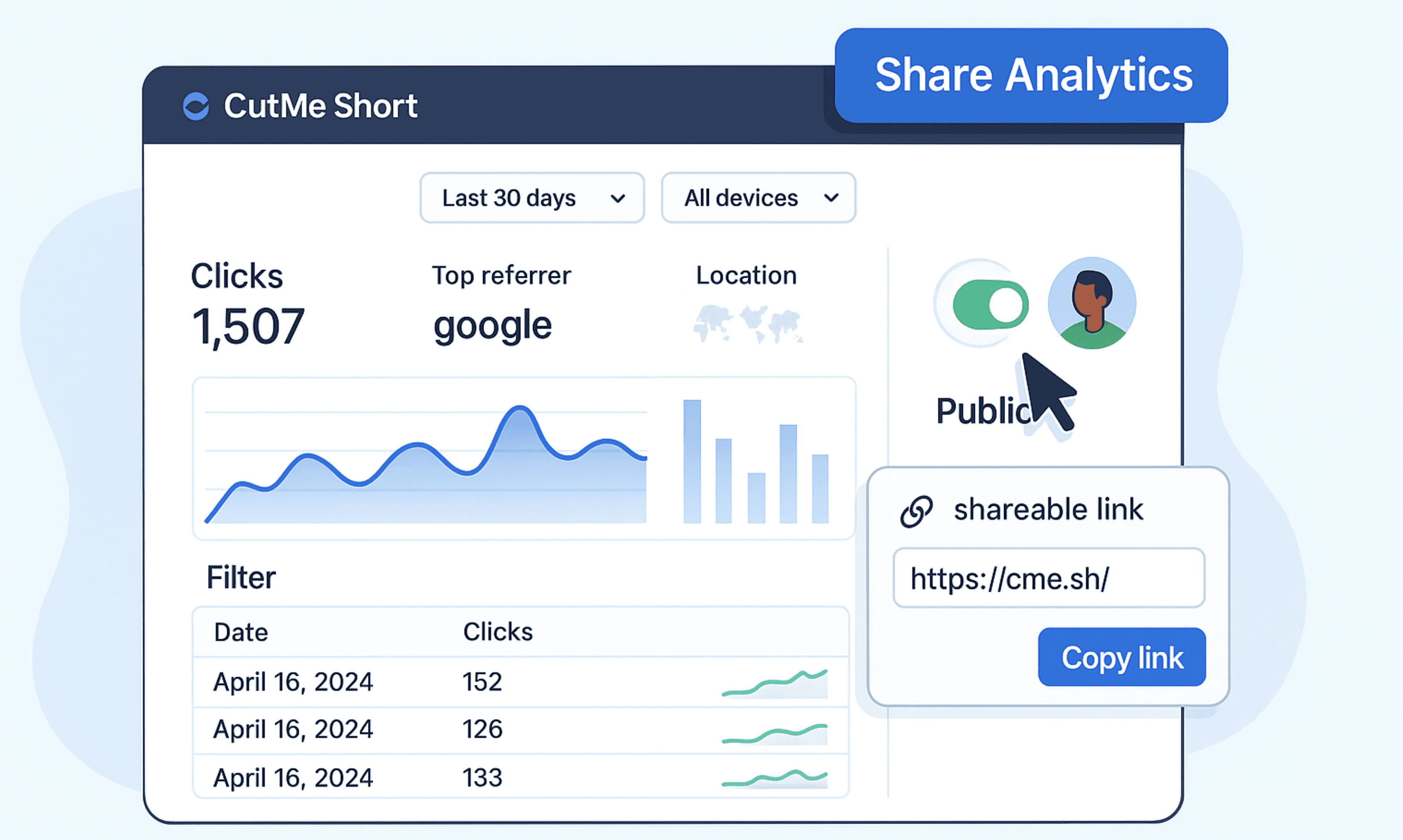
Sharing link performance should not require screenshots, manual reports, CSV exports, or giving someone full access to your dashboard.
With Public Analytics in CutMe Short, you can make a link analytics dashboard shareable, generate a public URL, and let clients, teammates, affiliates, or stakeholders view live analytics without logging in.
It is simple, useful, and fully controlled by you.
You decide when the analytics page is public. You can also disable sharing anytime, and the public link will stop working.
Quick Answer
Public Analytics in CutMe Short lets you share a live analytics dashboard for a specific short link using a public URL. You can enable public sharing from the link analytics page, copy the generated URL, and share it with clients, teammates, affiliates, or stakeholders. Anyone with the URL can view the analytics page without logging in, and you can disable access anytime.
What You Will Learn
By the end of this guide, you will know how to:
- Understand what Public Analytics means in CutMe Short
- Generate a public analytics link
- Share link performance without giving dashboard access
- Disable public sharing anytime
- Use Public Analytics for client reporting, team collaboration, and affiliate tracking
- Understand what data is visible on the shared page
- Follow best practices for secure analytics sharing
What Is Public Analytics in CutMe Short?
Public Analytics is a CutMe Short feature that lets you share a live analytics dashboard through a public URL.
Instead of asking someone to log in to your account or sending them static screenshots, you can generate a shareable analytics link.
The person opening that public analytics URL can view the link performance directly.
This is useful when you want to share campaign results while keeping your main CutMe Short account private.
Why We Built Public Analytics
Many teams, agencies, marketers, creators, and affiliates need to share link performance with others.
But the old workflow can become frustrating.
You may need to:
- Take screenshots of analytics
- Export data manually
- Create client reports
- Send repeated performance updates
- Give teammates dashboard access
- Explain numbers over email or chat
- Recreate the same report again and again
That takes time.
With Public Analytics Link, you can share a live, interactive analytics dashboard with just one link.
Your stakeholders can check performance whenever they need, and you stay in control of access.
Why Public Analytics Matters
Public Analytics helps you collaborate without exposing your full account.
Key Benefits
| Benefit | Why It Matters |
|---|---|
| Share live performance | Others can view updated analytics without waiting for manual reports |
| Avoid screenshots | No need to repeatedly capture and send analytics images |
| Save reporting time | Clients and teammates can open the dashboard directly |
| Keep account access private | Viewers do not need your CutMe Short login |
| Support client transparency | Agencies can show campaign performance more clearly |
| Improve collaboration | Teams can align around the same link performance data |
| Revoke access anytime | Turn off public sharing whenever needed |
This makes Public Analytics especially useful for teams that manage campaigns, clients, partners, or stakeholders.
How to Use the Analytics Sharing Feature
Sharing your analytics is simple.
Follow these steps to create a public analytics link in CutMe Short.
Step 1: Go to the Analytics Page
Open your CutMe Short dashboard.
Find the short link whose performance you want to share.
Click the link or open its analytics page.
This is where you can view click data, traffic details, devices, countries, referrers, and other performance insights.
Step 2: Find the Share Option
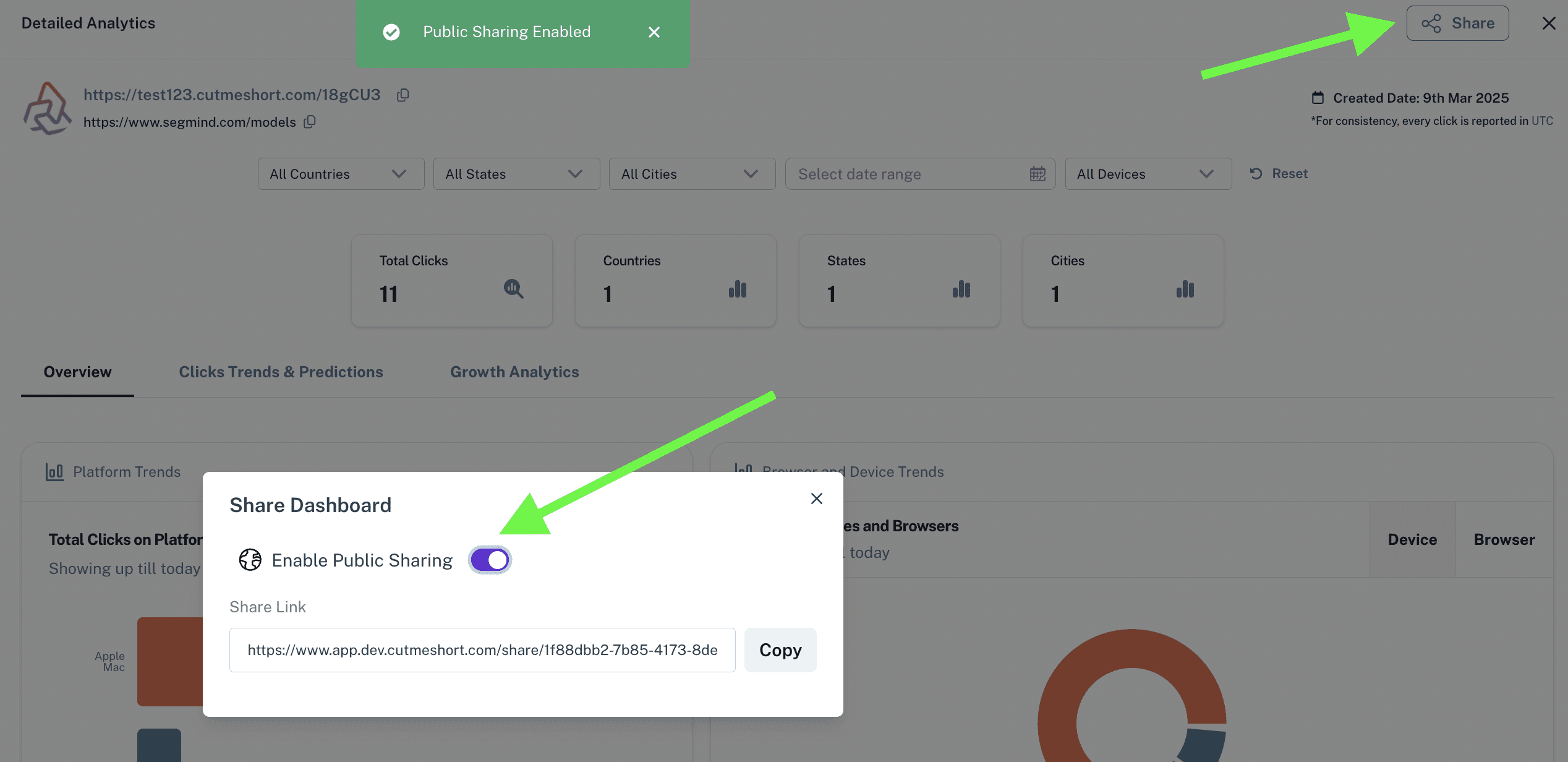
On the analytics page, look at the top-right corner.
You will see a Share button.
Click it to open the analytics sharing controls.
Step 3: Enable Public Sharing
Turn on the sharing toggle by selecting Enable Public Sharing.
Once enabled, CutMe Short generates a unique public analytics URL for that link.
This public URL can be shared with others.
Step 4: Copy and Share the Public Analytics Link
Copy the generated public analytics URL.
You can share it with:
- Clients
- Teammates
- Agencies
- Affiliates
- Influencers
- Partners
- Stakeholders
- Campaign managers
- Reporting teams
Anyone with the public analytics link can view the shared analytics page without logging in.
Step 5: Disable Sharing Anytime
If you want to revoke access, go back to the same analytics sharing section and turn off the public sharing toggle.
Once disabled, the public analytics URL will stop working.
This gives you full control over when the analytics page is accessible.
What the Shared Analytics Page Includes
The shared analytics page gives viewers access to the performance data for that specific link.
Depending on the link data available, viewers may see:
- Total clicks
- Clicks over time
- Hourly clicks
- Weekday clicks
- Device types
- Browser data
- Operating system data
- Country-level analytics
- City or location insights
- Referrer data
- Traffic source details
- Interactive filters
- Time range filters
- Live or updated performance data
Shared Page Capabilities
| Feature | What Viewers Can Do |
|---|---|
| View analytics | See performance data for the shared link |
| Use filters | Filter data by time range, device, country, or referrer |
| Monitor live data | View updated performance without asking you for reports |
| Access without login | Open the public URL directly |
The shared page is designed for visibility, not account management.
Viewers can see analytics but do not get access to your full CutMe Short account.
What Viewers Cannot Do
Public Analytics is built for sharing performance, not giving control.
People opening a public analytics link cannot:
- Log in to your account
- Edit your links
- Delete your links
- Create new links
- Access your billing details
- Access your workspace settings
- View unrelated links
- Change your analytics sharing settings
- Revoke or regenerate the public URL
This keeps your account safe while still allowing transparent reporting.
Real-World Use Cases
Public Analytics can save time across many workflows.
Client Reporting
Agencies can share campaign performance with clients in real time.
Instead of creating manual weekly reports, you can send one public analytics link and let the client check performance whenever needed.
This is useful for:
- Paid ad campaigns
- Influencer campaigns
- Email campaigns
- Social media campaigns
- QR code campaigns
- Launch campaigns
Team Collaboration
Marketing, product, sales, and growth teams can use Public Analytics to stay aligned.
For example, a marketing manager can share a public analytics link with the sales team so everyone can see which campaign link is getting traction.
Influencer and Affiliate Tracking
If you work with influencers, creators, or affiliate partners, you may need to show them how their link is performing.
Public Analytics lets you share performance without giving them dashboard access.
This can help partners understand:
- How many clicks their link received
- Which countries visitors came from
- Which devices visitors used
- Whether traffic is increasing over time
Stakeholder Updates
Founders and marketing teams can share analytics with investors, managers, or internal stakeholders.
Instead of preparing repeated updates, you can share one live performance link.
Event and QR Code Campaigns
If you are running offline campaigns with QR codes, Public Analytics can help event teams monitor engagement in real time.
For example, you can share a public analytics link for:
- Flyer QR codes
- Event booth QR codes
- Restaurant menu QR codes
- Product packaging QR codes
- Poster campaigns
Public Analytics vs Full Dashboard Access
Public Analytics is useful because it gives visibility without giving control.
| Option | Best For | Access Level |
|---|---|---|
| Public Analytics Link | Sharing performance with clients, partners, or stakeholders | View-only analytics access |
| Full Dashboard Access | Internal teammates who need to manage links | Account or workspace access |
| Screenshots | One-time static reporting | No live access |
| CSV Export | Offline analysis or manual reports | Static data snapshot |
If someone only needs to view link performance, Public Analytics is usually the safest and fastest option.
Privacy and Access Control
Public Analytics was designed with control in mind.
You decide:
- Which link analytics page becomes public
- When the public URL is active
- Who receives the public URL
- When to disable access
The moment you disable sharing, the public link becomes invalid.
This gives you a safe way to share live data while keeping your account protected.
Best Practices for Sharing Public Analytics
Follow these best practices to use Public Analytics safely and effectively.
Share Only What Is Needed
Only enable Public Analytics for the specific link you want to share.
Avoid sharing analytics for links that contain sensitive campaign data unless the viewer is authorized.
Use Public Analytics for View-Only Reporting
If a client, partner, or stakeholder only needs to see performance, share a public analytics link instead of inviting them to your full workspace.
Disable Sharing After the Campaign Ends
Once a campaign is complete, disable public sharing if the analytics page no longer needs to be public.
Use Clear Link Titles
Before sharing analytics, make sure the link title clearly identifies the campaign.
Examples:
Client A - Instagram Bio Campaign
Q3 Launch - Paid Ads Link
Affiliate Partner - June Offer
Event QR - Main Entrance
This helps viewers understand what they are looking at.
Explain What the Metrics Mean
If the viewer is not familiar with analytics, add a short note when sharing the URL.
For example:
Here is the live analytics dashboard for the campaign link. You can use the filters to check clicks by date, country, device, and referrer.
Review the Shared Page First
Before sending the public URL, open it yourself and confirm the data looks correct.
Common Mistakes to Avoid
| Mistake | Why It Causes Issues | How to Fix It |
|---|---|---|
| Sharing full dashboard access unnecessarily | Gives more access than needed | Use Public Analytics for view-only reporting |
| Forgetting to disable sharing | Link may remain public longer than needed | Turn off sharing after the campaign ends |
| Sharing analytics for the wrong link | Viewers see incorrect campaign data | Double-check the link before copying the URL |
| Sending screenshots repeatedly | Creates extra manual work | Share the live analytics URL instead |
| Not explaining filters | Clients may miss useful insights | Add a short note explaining what they can filter |
| Using unclear link titles | Viewers may not understand the report | Rename the link clearly before sharing |
Troubleshooting Public Analytics
Use this quick checklist if your public analytics link does not work as expected.
| Issue | Possible Reason | What to Do |
|---|---|---|
| Public analytics URL does not open | Sharing may be disabled | Enable Public Sharing again |
| Client says link stopped working | Sharing may have been turned off | Check the sharing toggle |
| Viewer cannot see expected data | Wrong link may have been shared | Confirm the analytics page belongs to the correct short link |
| Data looks different from a screenshot | Shared analytics page shows live data | Refresh and compare selected filters |
| Filters are confusing | Viewer may need guidance | Send a short explanation with the link |
| You no longer want the page public | Public sharing is still enabled | Toggle off Public Sharing |
SEO Checklist for Public Analytics Content
If you are using analytics sharing for campaigns and reporting, keep your link setup clean:
- Use descriptive short link titles
- Use branded domains for client-facing links
- Keep campaign naming consistent
- Use UTM parameters where needed
- Review link analytics before sharing
- Share only the relevant analytics page
- Disable public sharing when no longer needed
- Use analytics data to improve future campaigns
AEO Checklist for This Guide
AEO, or Answer Engine Optimization, helps users and AI-powered search systems understand your content quickly.
This guide is structured with:
- A direct quick answer near the top
- Clear explanation of Public Analytics
- Step-by-step instructions
- Comparison table for sharing options
- Use cases for agencies, teams, affiliates, and events
- Troubleshooting table
- FAQs with direct answers
- Simple language for non-technical readers
This makes the content easier to read, summarize, and surface in answer-style search results.
Frequently Asked Questions
What is Public Analytics in CutMe Short?
Public Analytics is a feature that lets you generate a public URL for a link analytics dashboard so others can view live link performance without logging into your CutMe Short account.
How do I share analytics in CutMe Short?
Open the analytics page for a link, click the Share button, enable public sharing, copy the generated URL, and send it to the person who needs access.
Do viewers need a CutMe Short account?
No. Viewers can open the public analytics URL without logging into CutMe Short.
Can viewers edit my links?
No. Public Analytics is view-only. Viewers can see analytics but cannot edit, delete, or manage your links.
Can I disable a public analytics link?
Yes. You can turn off public sharing anytime. Once disabled, the public analytics URL will stop working.
What data is visible on the shared analytics page?
The shared page can include link performance data such as clicks, time-based trends, devices, geolocation, referrers, and interactive filters.
Is Public Analytics useful for client reporting?
Yes. Agencies and marketers can use Public Analytics to share live campaign performance with clients without creating manual reports or giving dashboard access.
Can I share analytics with affiliates or influencers?
Yes. You can share a public analytics link with affiliates, influencers, partners, or creators so they can view the performance of their specific link.
Is Public Analytics secure?
Public Analytics gives you control over access. The shared URL only works while public sharing is enabled, and you can disable it anytime.
When should I use Public Analytics instead of workspace access?
Use Public Analytics when someone only needs to view performance. Use workspace access only when someone needs to create, edit, or manage links.
Start Sharing Link Performance Effortlessly
With Public Analytics in CutMe Short, sharing link performance becomes simple.
You no longer need to send repeated screenshots, export CSV files, or manually prepare reports for every update.
Just enable public sharing, copy the public analytics URL, and send it to the people who need visibility.
Use it for:
- Client reporting
- Team collaboration
- Affiliate tracking
- Influencer campaigns
- Stakeholder updates
- Event and QR code campaign monitoring
Head to your CutMe Short analytics page, enable Public Sharing, and start sharing live link performance in seconds.