
Introducing Workspaces & User Invite in CutMe Short
CutMe Short Workspaces and User Invites help teams, agencies, and marketers organize links, share access, manage collaborators, and work together from one dashboard.
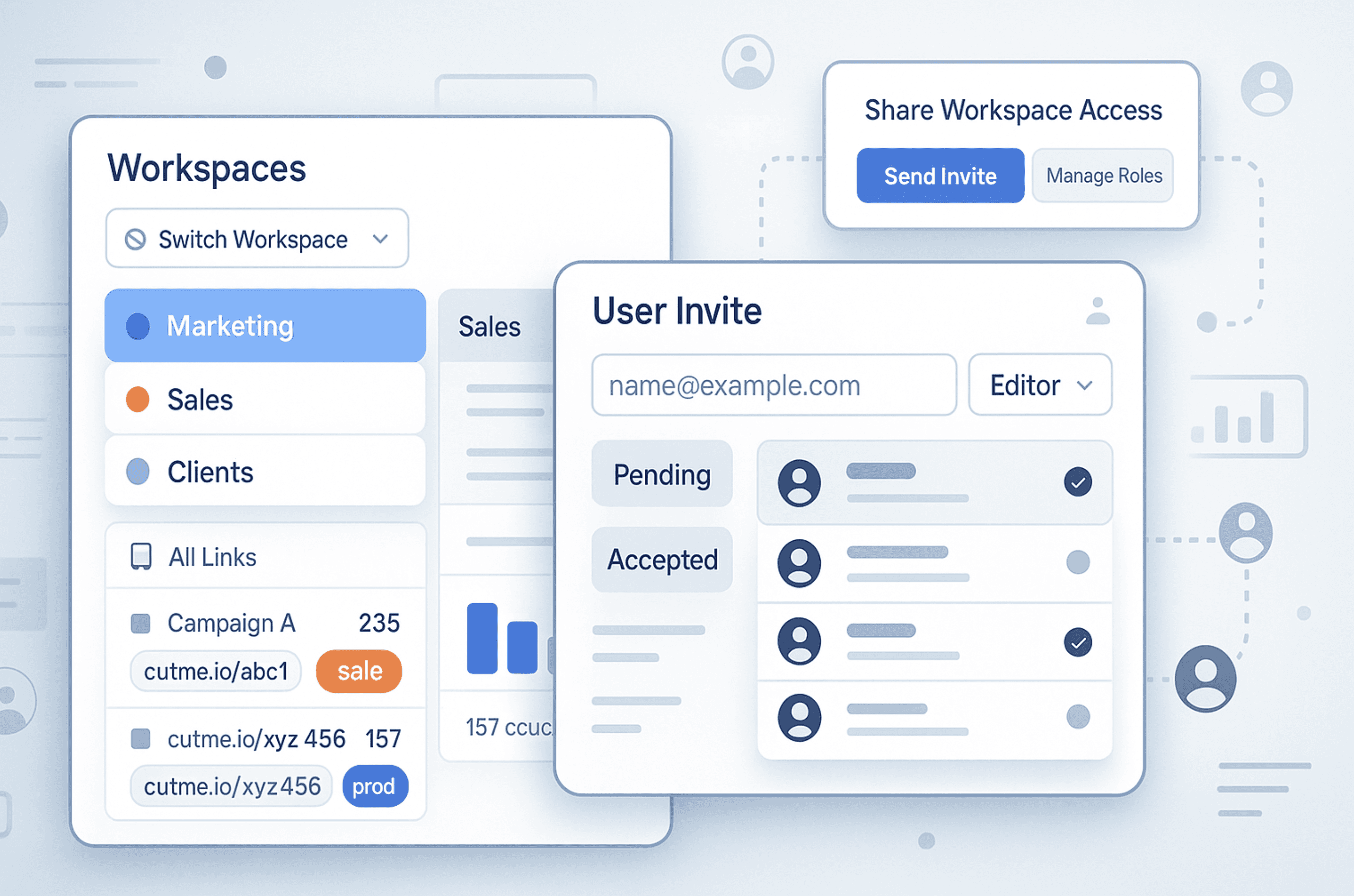
Collaborate seamlessly and manage teams with ease.
At CutMe Short, we are always working to give you more control, more clarity, and more collaborative power.
With the Workspaces & User Invite feature, you can now organize your links, manage multiple teams or projects, and securely share access with teammates from a single dashboard.
Whether you are a solo creator, a growing startup, a marketing team, or an agency managing multiple clients, Workspaces help keep your short links, domains, and analytics organized.
Quick Answer
Workspaces in CutMe Short let you separate links, domains, and analytics by project, team, brand, or client. You can create multiple workspaces, switch between them, invite teammates, manage access, and revoke user permissions when needed. Invited users can create, edit, delete, and view links inside the shared workspace, but they cannot access your billing, profile settings, or workspace ownership controls.
What You Will Learn
By the end of this guide, you will know how to:
- Create a new workspace in CutMe Short
- Switch between multiple workspaces
- Rename a workspace
- Identify shared workspaces
- Invite team members to a workspace
- Understand what invited users can and cannot access
- Revoke access when someone should no longer have permissions
- Understand workspace and invite limits by plan
- Use Workspaces for teams, agencies, clients, and campaigns
Why Workspaces Matter in Link Management
As your link library grows, managing everything inside one dashboard can become messy.
You may have links for:
- Different brands
- Multiple clients
- Separate marketing campaigns
- Team projects
- Affiliate promotions
- Product launches
- Social media channels
- Internal teams
Without separation, it becomes harder to find links, understand analytics, and control who has access to what.
That is where Workspaces help.
A workspace gives you a separate environment where a specific set of links, domains, and analytics can be managed independently.
Key Benefits of Workspaces
| Benefit | Why It Matters |
|---|---|
| Better organization | Keep links separated by client, brand, team, or project |
| Cleaner collaboration | Invite teammates only to the workspace they need |
| Safer access control | Avoid sharing your full account login with others |
| Faster team execution | Teammates can create and manage links without waiting for you |
| Clearer analytics | Review performance within a specific workspace |
| Agency-friendly setup | Manage different clients from one CutMe Short account |
| Better ownership control | Revoke access when a project or collaboration ends |
Workspaces turn CutMe Short from a personal link management tool into a team-friendly collaboration platform.
Who Should Use Workspaces?
Workspaces are useful for anyone who manages more than one set of links.
Agencies
Agencies can create separate workspaces for each client.
For example:
Client A - Paid Ads
Client B - Social Campaigns
Client C - Influencer Links
This keeps client data separate and easier to manage.
Marketing Teams
Marketing teams can create workspaces by campaign, brand, or department.
For example:
Q3 Product Launch
Newsletter Campaigns
Paid Social
Partnership Links
Startups and Businesses
Businesses can separate links by team or function.
For example:
Sales Team
Marketing Team
Customer Success
Founder Links
Creators and Influencers
Creators can create workspaces for personal content, brand deals, communities, or products.
For example:
YouTube Links
Brand Collaborations
Affiliate Links
Course Launch
1. Creating a New Workspace
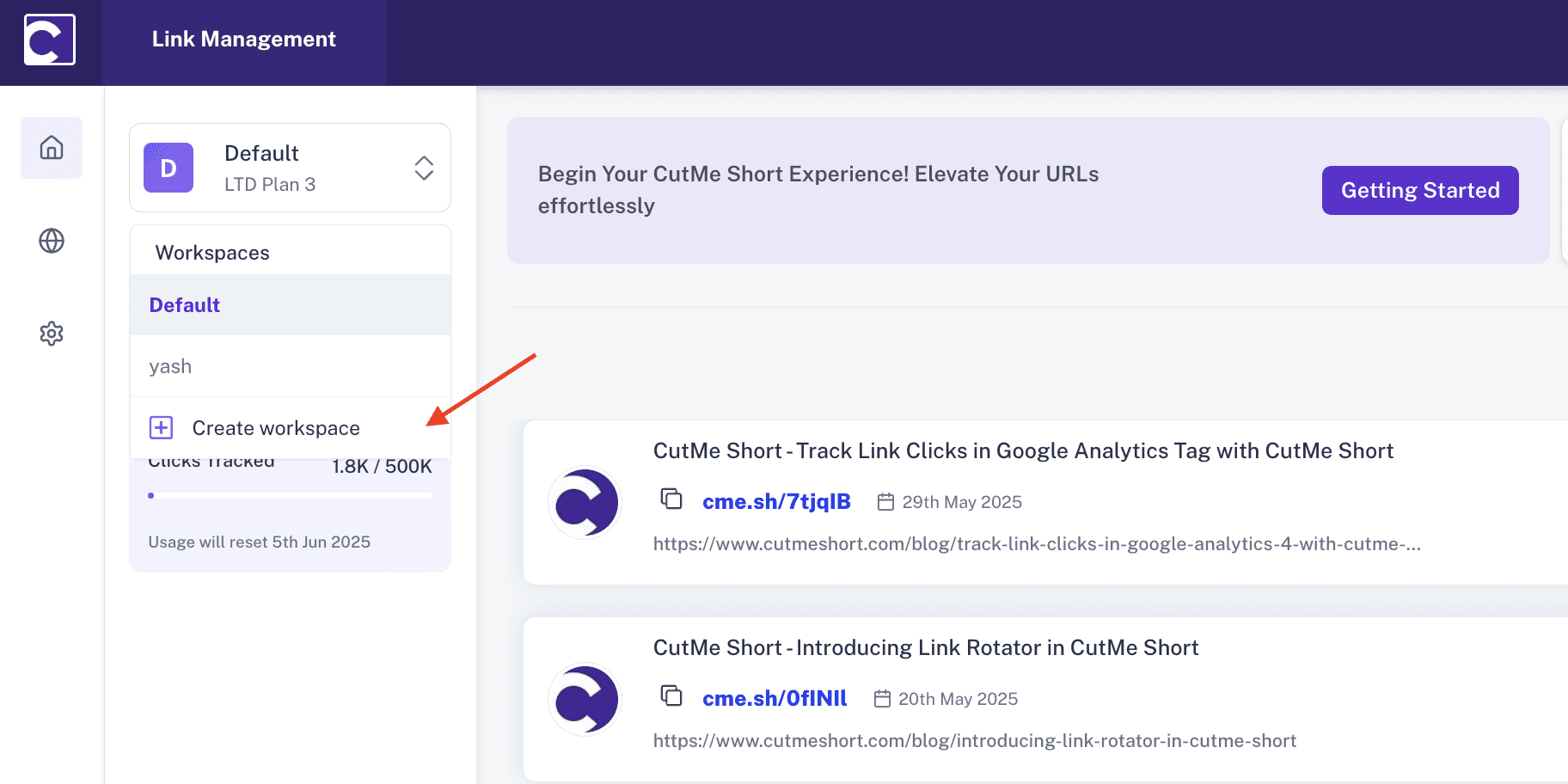
To get started with Workspaces:
- Go to the top-left corner of your CutMe Short dashboard.
- Click on the default workspace name.
- Select Create Workspace.
- Enter a workspace name that clearly describes the project, team, or client.
You can create multiple workspaces to separate personal, client-based, team-specific, or campaign-specific projects.
Note: Workspace creation limits depend on your current plan.
Workspace Naming Tips
Use names that are easy to understand later.
Good examples:
Acme Client - Campaign Links
Internal Marketing
Q4 Product Launch
Creator Partnerships
Newsletter Links
Avoid names like:
Workspace 1
Test
New Project
Links
Clear names make it easier for your team to switch, collaborate, and avoid mistakes.
2. Switching Between Workspaces
Managing multiple workspaces is simple.
To switch between them:
- Click the workspace dropdown in the top-left corner.
- Select the workspace you want to open.
- The dashboard will update to show that workspace's links, domains, and analytics.
This makes it easy to move between clients, campaigns, or teams without mixing data.
3. Renaming a Workspace
If you need to update a workspace name:
- Go to Settings > Workspace.
- Find the workspace name input field at the top.
- Update the name.
- The new name will reflect across your dashboard.
Renaming is useful when a campaign changes, a client name updates, or a project moves into a new phase.
4. Shared Workspace Indicator
CutMe Short makes it easier to identify shared workspaces.
When a workspace is shared, you will see a shared icon next to the workspace name in the dropdown list.
This helps you quickly understand whether a workspace is personal or shared with other users.
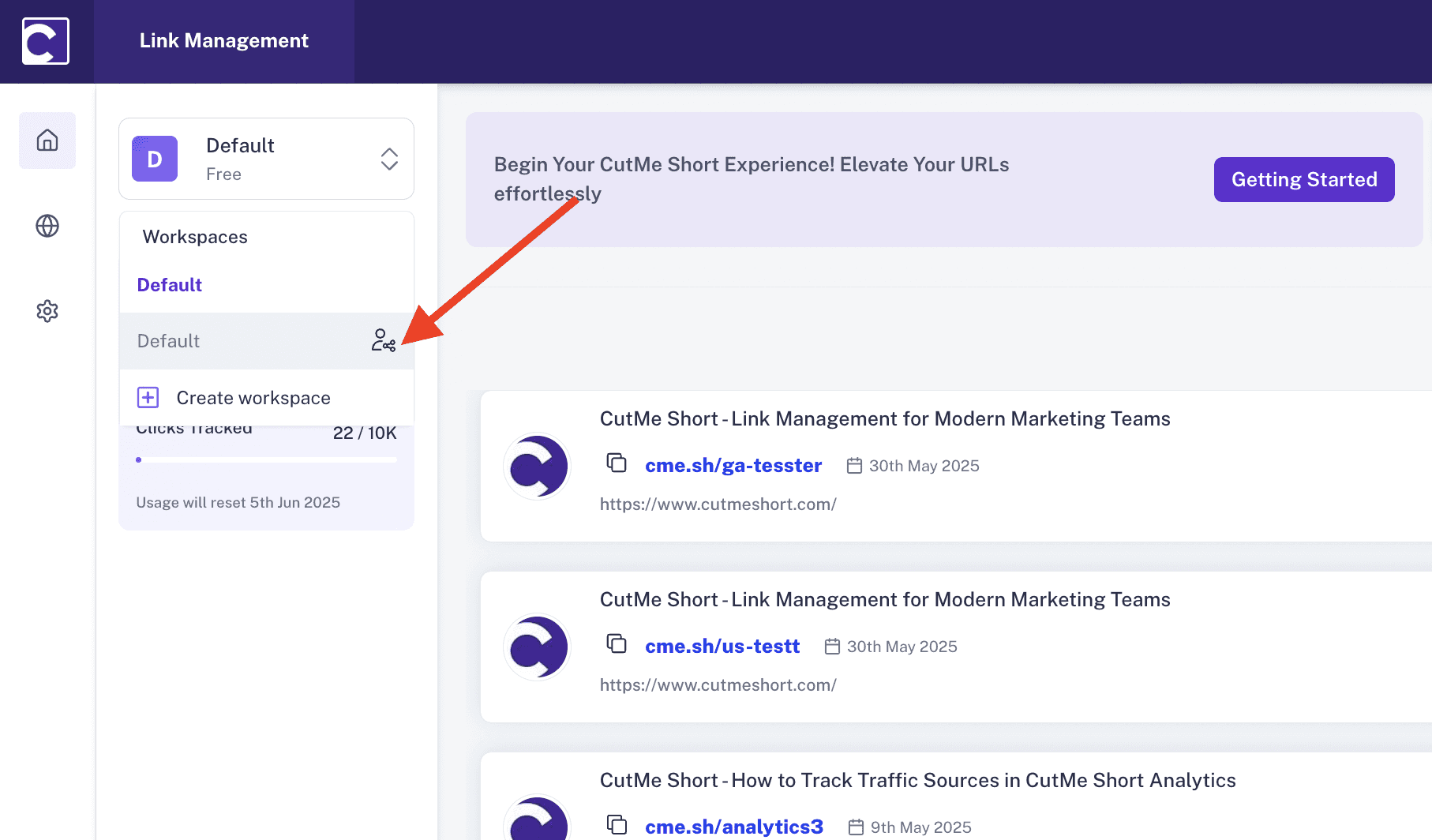
Shared indicators are helpful when you manage both private and team workspaces inside the same account.
5. Inviting Users to a Workspace
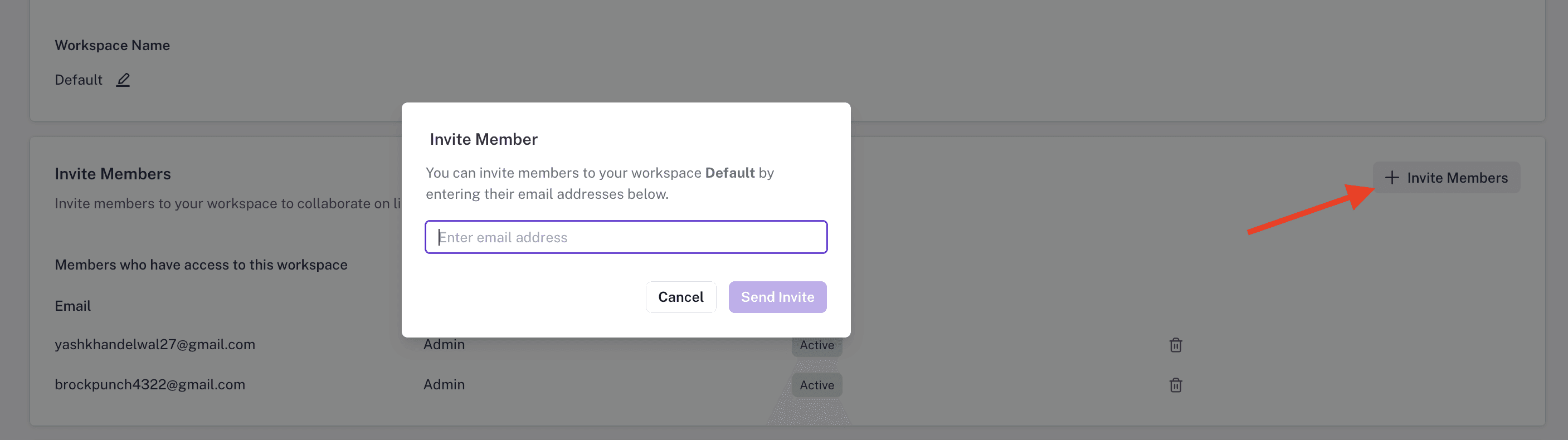
To invite a team member:
- Go to Settings > Workspace.
- Click Invite Member.
- Enter the user's email address.
- Send the invitation.
What Happens After You Invite Someone?
The invite flow depends on whether the person already has a CutMe Short account.
| User Status | What Happens |
|---|---|
| Existing CutMe Short user | They receive an invite and can accept it |
| New user | They can sign up first and then accept the invite from their email |
After accepting, the user gets access to the shared workspace and can start collaborating.
6. Accepting Invites and Notifications
Once your teammate accepts the invite:
- You receive an internal notification in CutMe Short.
- The teammate gains access to the shared workspace.
- They can start working with the links and data available inside that workspace.
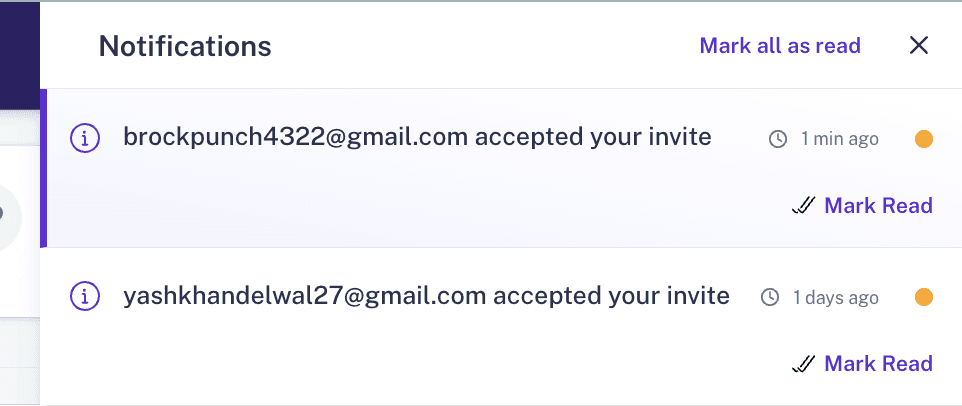
Notifications help workspace owners stay informed when team access changes.
7. Managing and Revoking User Access
You can remove a user's access at any time.
To revoke access:
- Go to Settings > Workspace.
- Find the user you want to remove.
- Click the delete icon beside that user.
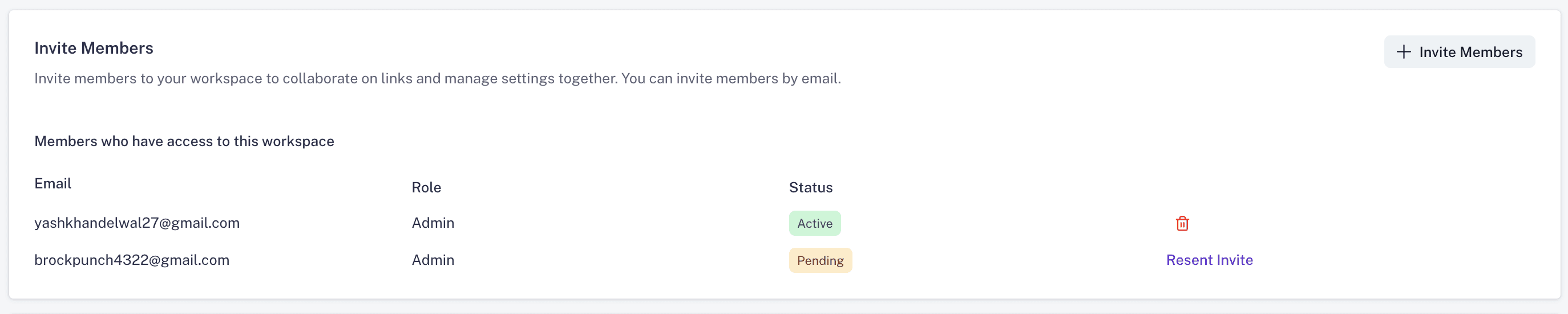
After access is revoked:
- The user receives a notification that access has been removed.
- The original invite link is disabled.
- The user can no longer access that workspace.
This is useful when a project ends, a contractor finishes their work, or a teammate no longer needs access.
8. Permissions: What Shared Users Can and Cannot Do
Invited users receive workspace-level access.
They can help manage links and analytics inside the shared workspace, but they cannot access sensitive account-level settings.
Shared Users Can Access
| Permission | Description |
|---|---|
| Create links | They can create new short links inside the shared workspace |
| Edit links | They can update links within that workspace |
| Delete links | They can delete links from that workspace |
| View analytics | They can see link performance and click data |
| Use custom domains | They can use connected domains available inside the workspace |
Shared Users Cannot Access
| Restricted Area | Why It Is Restricted |
|---|---|
| Profile details | Protects personal account settings such as password-related actions |
| Billing and payment settings | Keeps subscription and payment information private |
| Workspace deletion | Prevents invited members from removing the workspace |
| Workspace renaming | Preserves ownership control for the workspace owner |
This balance gives collaborators enough access to do their work without compromising account security or ownership.
9. Notifications for Key Events
CutMe Short supports internal notifications for important workspace events.
You may receive notifications when:
- A user accepts an invitation
- A user's access is revoked
These notifications appear inside the CutMe Short notification panel.
This gives workspace owners better visibility into team activity and access changes.
10. Plan Limits: Startup vs Professional
Workspace and user invite limits depend on your plan.
| Plan | Workspace Creation Limit | User Invites Per Workspace |
|---|---|---|
| Startup Plan | Up to 5 workspaces | Up to 3 users per workspace |
| Professional Plan | Up to 10 workspaces | Up to 5 users per workspace |
If you manage multiple projects, campaigns, clients, or teams, the Professional plan gives you more flexibility and collaboration capacity.
Best Practices for Using Workspaces
To get the most value from Workspaces, follow these best practices.
Create Workspaces Around Real Workflows
Do not create workspaces randomly.
Create them around real separation needs, such as:
- Clients
- Brands
- Campaigns
- Teams
- Regions
- Product lines
This keeps your dashboard clean and useful.
Use Clear Workspace Names
Clear names help everyone understand where they are working.
For example:
Client - Social Ads
Brand - Influencer Campaign
Internal - Product Launch
Invite Only the Right People
Only invite users who actually need access.
This keeps your workspace secure and avoids unnecessary clutter.
Review Access Regularly
Check workspace members from time to time.
Remove users who no longer need access, especially after a project ends.
Separate Client Workspaces
If you are an agency, avoid putting multiple clients in the same workspace.
Separate workspaces make reporting, access control, and link management much cleaner.
Use Shared Workspaces for Campaign Execution
For a campaign, invite the people who need to create links, update destinations, or review analytics.
This reduces back-and-forth and speeds up execution.
Common Use Cases for Workspaces
Client Link Management
Agencies can create one workspace per client and invite only the team members working on that client.
This keeps links, analytics, and domains separated.
Team-Based Collaboration
Businesses can create workspaces for marketing, sales, customer success, and partnerships.
Each team can manage its own links without interfering with others.
Campaign Organization
For major campaigns, create a dedicated workspace and manage all campaign links in one place.
This is useful for:
- Product launches
- Seasonal offers
- Influencer campaigns
- Paid ads
- Event promotions
Virtual Assistant or Freelancer Access
If you work with virtual assistants, freelancers, or contractors, you can invite them to the workspace they need.
When the work is complete, revoke access.
Multi-Brand Management
Founders and teams managing multiple brands can keep links separated by brand.
This helps avoid using the wrong domain, slug, or destination URL.
Troubleshooting Workspace and Invite Issues
Use this quick reference if something does not work as expected.
| Issue | Possible Reason | What to Do |
|---|---|---|
| User did not receive invite | Email may be delayed or entered incorrectly | Check the email address and ask them to check spam/promotions |
| User cannot access workspace | Invite may not be accepted yet | Ask them to accept the invite from email |
| Invite link does not work | Invite may be revoked or expired | Send a new invite |
| User sees wrong workspace | They may be in a different workspace from the dropdown | Ask them to switch workspaces from the top-left dropdown |
| Cannot invite more users | Plan invite limit may be reached | Remove unused members or upgrade plan |
| Cannot create more workspaces | Workspace plan limit may be reached | Delete unused workspaces or upgrade plan |
| User should no longer have access | Access was not revoked yet | Remove them from Settings > Workspace |
Workspace SEO Checklist
If your team uses short links for public campaigns, keep your workspace setup clean.
- Use separate workspaces for separate brands or clients
- Use clear link titles inside each workspace
- Use branded custom domains where possible
- Keep campaign links organized
- Review analytics inside the correct workspace
- Remove outdated or duplicate links
- Revoke access for old collaborators
- Keep link naming conventions consistent
- Use workspaces to avoid mixing client or campaign data
A clean workspace structure helps your team manage links more professionally.
Workspace AEO Checklist
AEO, or Answer Engine Optimization, helps content answer questions clearly for users and AI-powered search systems.
This blog is structured to be AEO-friendly with:
- A direct quick answer near the top
- Step-by-step instructions
- Clear permission tables
- Plan limit tables
- Troubleshooting guidance
- FAQ-style answers
- Simple examples for agencies, teams, and creators
This makes the content easier to understand, summarize, and surface in answer-style search experiences.
Frequently Asked Questions
What are Workspaces in CutMe Short?
Workspaces are separate environments inside CutMe Short where you can organize links, domains, and analytics by team, client, project, brand, or campaign.
What is the User Invite feature?
User Invite lets you invite teammates, contractors, or collaborators to a specific workspace so they can help manage links and analytics without accessing your entire account.
How do I create a workspace in CutMe Short?
Click the workspace name in the top-left corner of your dashboard and select Create Workspace. Then add a name for the new workspace.
How do I switch between workspaces?
Click the workspace dropdown in the top-left corner and select the workspace you want to open.
Can I rename a workspace?
Yes. Go to Settings > Workspace, update the workspace name, and it will reflect across your dashboard.
How do I invite a team member to a workspace?
Go to Settings > Workspace, click Invite Member, enter the user's email address, and send the invitation.
What can invited users do inside a workspace?
Invited users can create, edit, or delete links, view analytics, and use connected custom domains inside that workspace.
What can invited users not access?
Invited users cannot access your profile details, billing and payment settings, or workspace ownership actions such as deleting or renaming the workspace.
Can I revoke user access later?
Yes. Go to Settings > Workspace and click the delete icon beside the user you want to remove. Their access will be revoked and the invite link will be disabled.
How many workspaces can I create?
The Startup plan supports up to 5 workspaces, while the Professional plan supports up to 10 workspaces.
How many users can I invite to a workspace?
The Startup plan supports up to 3 user invites per workspace, while the Professional plan supports up to 5 user invites per workspace.
Are shared workspaces marked differently?
Yes. Shared workspaces show a shared icon in the workspace dropdown so you can quickly identify them.
Start Collaborating with Workspaces
With Workspaces and User Invites, CutMe Short becomes more than a link shortener.
It becomes a collaboration platform for teams, agencies, creators, and businesses that need to organize links, share access, manage analytics, and work together securely.
The workflow is simple:
- Create a workspace.
- Name it clearly.
- Invite the right team members.
- Manage links, domains, and analytics together.
- Revoke access when it is no longer needed.
Whether you are organizing campaigns by client, managing links across teams, or collaborating with marketers, virtual assistants, and freelancers, Workspaces make link management cleaner, safer, and more scalable.
Create your first workspace in CutMe Short today and start collaborating with your team.