
Track Link Clicks in Google Analytics Tag with CutMe Short
A step-by-step guide to connecting CutMe Short links with Google Analytics 4 so you can track short link clicks, monitor real-time events, and understand campaign performance more clearly.
Tracking link clicks is essential if you want to understand how your campaigns, social posts, emails, ads, and branded links are performing.
With CutMe Short, you can connect your shortened links to Google Analytics 4, also known as GA4, by adding your GA4 Measurement ID while creating a link.
Once added, CutMe Short can send link click activity to your GA4 property, helping you monitor performance inside your Google Analytics dashboard without manually installing scripts or using Google Tag Manager.
Quick Answer
You can track CutMe Short link clicks in Google Analytics 4 by adding your GA4 Measurement ID to a short link during link creation. When someone clicks that short link, CutMe Short fires a pageview event to your GA4 property. You can view those click events in Reports > Realtime > Events inside Google Analytics.
What You Will Learn
By the end of this guide, you will know how to:
- Track short link clicks in GA4 using CutMe Short
- Find your GA4 Measurement ID
- Add the Measurement ID while creating a short link
- View link click events inside Google Analytics
- Understand how GA4 tracking works with short links
- Use GA4 tracking with branded domains
- Avoid common setup mistakes
- Understand why GA4 and CutMe Short click counts may differ
Why Track Short Link Clicks in Google Analytics?
CutMe Short already gives you link analytics inside your dashboard.
But many marketers, founders, agencies, and growth teams also use Google Analytics as their central reporting tool.
When you send short link click activity to GA4, you can analyze link performance alongside your website, campaign, landing page, and traffic data.
Benefits of Tracking Short Links in GA4
| Benefit | Why It Matters |
|---|---|
| Centralized reporting | View short link activity inside your existing analytics workflow |
| Real-time visibility | See click activity as users interact with your links |
| Campaign analysis | Understand how different links contribute to campaign performance |
| Better decision-making | Compare link clicks with other website and marketing data |
| No manual scripts | Add the GA4 Measurement ID directly in CutMe Short |
| Works with branded domains | Track clicks from both default and custom short domains |
If you already use GA4 for reporting, adding CutMe Short link clicks can make your campaign analytics more complete.
How GA4 Click Tracking Works in CutMe Short
When someone clicks a CutMe Short link that includes a GA4 Measurement ID, CutMe Short automatically sends a pageview event to your GA4 property.
These events can appear inside your GA4 dashboard under:
Reports > Realtime > Events
This allows you to monitor link clicks in real time and confirm that your short links are sending tracking data properly.
What Is a GA4 Measurement ID?
A GA4 Measurement ID is a unique tracking ID connected to your Google Analytics 4 web data stream.
It usually looks like this:
G-XXXXXXXXXX
CutMe Short uses this Measurement ID to know which GA4 property should receive the link click event.
Step-by-Step: Set Up GA4 Tracking in CutMe Short
Follow these steps to create a GA4-tracked short link.
Step 1: Create a New Link
First, open your CutMe Short dashboard.
Then:
- Click Create New Link.
- Enter your destination URL.
- Add optional link details if needed.
You can also add:
- Link title
- Tags
- Folder
- UTM parameters
- Custom slug
- Custom domain
These fields help you organize and track your links more clearly.
Step 2: Add Your GA4 Measurement ID
Inside the link creation panel, expand the Google Analytics section.
Paste your GA4 Measurement ID into the provided field.
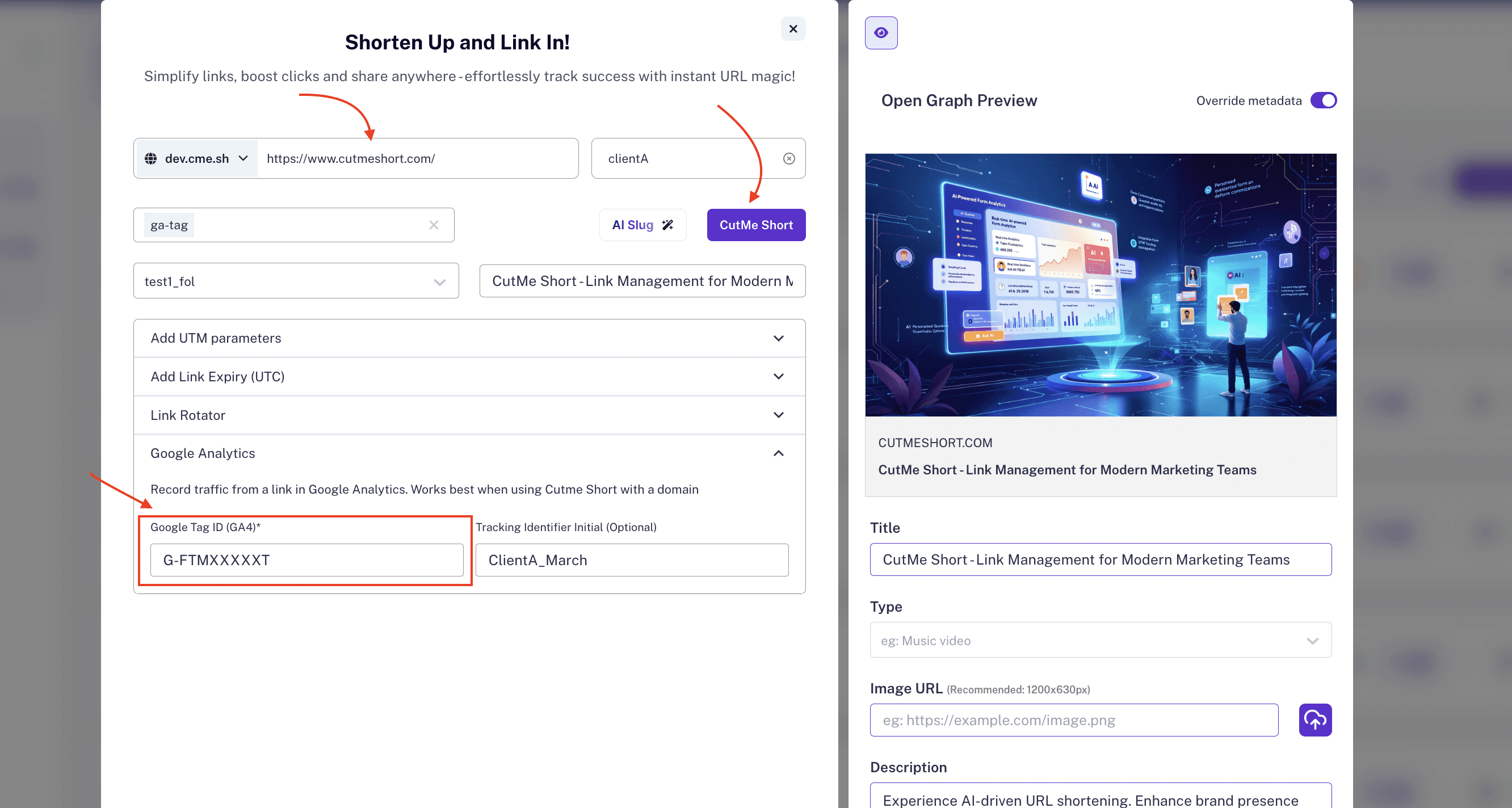
Your Measurement ID should look similar to this:
G-ABC1234567
Do not paste your full Google Analytics script here. Only paste the Measurement ID.
Optional: Add a Label
You can optionally add a label to help identify links in GA4.
If you leave the label blank, CutMe Short uses CutMeShort as the default label.
A label is useful when you want to separate different campaigns or link groups.
Examples:
Instagram Bio Link
June Launch Campaign
Newsletter CTA
Influencer Campaign
Step 3: Find Your GA4 Measurement ID
If you do not know your GA4 Measurement ID, you can find it inside Google Analytics.
Go to your Google Analytics account and follow these steps:
- Open your GA4 property.
- Go to Admin.
- Open Data Streams.
- Select your active web data stream.
- Copy the Measurement ID in the
G-XXXXXXXXXXformat.
After copying it, return to CutMe Short and paste it into the Google Analytics field.
Step 4: Save and Share Your Link
Once your link setup is complete, save the link.
After the link is saved, you can share it anywhere:
- Social media posts
- Instagram bio
- LinkedIn posts
- YouTube descriptions
- Email campaigns
- Newsletters
- Ads
- QR codes
- WhatsApp messages
- Partner campaigns
Every click on that GA4-enabled short link can trigger a pageview event in your GA4 property.
Step 5: View Link Clicks in GA4
To view link click activity, open your GA4 property and go to:
Reports > Realtime > Events
This is where you can monitor events generated by recent link clicks.
You may see click activity along with the identifiers, labels, or Measurement ID values connected to the link setup.
Testing Tip
After creating your GA4-tracked link:
- Open the short link in a new browser tab.
- Wait a few seconds.
- Open GA4 Realtime reports.
- Check whether the event appears under Realtime events.
Realtime data is useful for confirming that the setup is working correctly.
Do You Need Google Tag Manager?
No.
You do not need Google Tag Manager to use GA4 tracking with CutMe Short links.
CutMe Short handles the tracking flow for the link after you add your GA4 Measurement ID. This means there is no need to install a GTM container or paste tracking scripts manually for this specific setup.
CutMe Short GA4 Tracking vs Google Tag Manager
| Setup Method | What You Need | Best For |
|---|---|---|
| CutMe Short GA4 field | GA4 Measurement ID | Simple short link click tracking |
| Google Tag Manager | GTM container and tags | Advanced website tracking workflows |
| Manual GA4 script | Code added to a page | Tracking pages you own directly |
For most short link click tracking needs, adding the Measurement ID in CutMe Short is the easiest option.
Can You Use GA4 Tracking with Branded Domains?
Yes.
GA4 tracking works with both:
- CutMe Short default short domains
- Your connected branded custom domains
For example, you can track clicks on links like:
https://cme.sh/demo
And:
https://go.yourbrand.com/demo
Just make sure the correct GA4 Measurement ID is applied to each link where you want tracking enabled.
Will GA4 Tracking Slow Down Redirects?
GA4 tracking may add a small delay because CutMe Short needs enough time to trigger the tracking event before the user reaches the destination page.
For most users, this delay is minimal.
If you want the fastest possible redirect and do not need GA4 reporting for a specific link, you can leave the GA4 field empty.
Why GA4 Click Counts May Differ from CutMe Short Analytics
You may notice that click counts in GA4 and CutMe Short are not always exactly the same.
This can happen because different analytics systems count traffic differently.
Common Reasons for Count Differences
| Reason | Explanation |
|---|---|
| Privacy settings | Some browsers, extensions, or privacy tools may block analytics requests |
| Bot filtering | GA4 and CutMe Short may treat bots or automated clicks differently |
| Timing differences | Realtime data and final reports may update at different speeds |
| Network issues | A tracking request may fail even if the short link redirect succeeds |
| Measurement method | CutMe Short and GA4 may use different event collection logic |
Small differences are normal when comparing analytics tools.
For campaign decisions, use both sources together: CutMe Short for link-level analytics and GA4 for broader website and campaign reporting.
Best Practices for GA4 Link Tracking
Use these best practices to keep your tracking clean.
Use Clear Labels
Labels make it easier to understand which campaign or link generated the event.
Examples:
LinkedIn Founder Post
Instagram Bio
YouTube Description
Email CTA
Add UTM Parameters When Needed
GA4 tracking helps you record the click, but UTM parameters can help you understand campaign source and medium after the visitor reaches the destination page.
Example:
https://example.com/demo?utm_source=linkedin&utm_medium=social&utm_campaign=product_launch
Use Branded Domains for Important Campaigns
Branded short links build more trust and look cleaner in public campaigns.
Example:
https://go.yourbrand.com/product-launch
Test Before Sharing Widely
Before sharing a link with your full audience, click it once and check GA4 Realtime reports.
This confirms that your Measurement ID was added correctly.
Keep Measurement IDs Organized
If you manage multiple GA4 properties, make sure you use the correct Measurement ID for each link.
This is especially important for agencies managing multiple clients.
Common Mistakes to Avoid
| Mistake | Why It Causes Issues | How to Fix It |
|---|---|---|
| Pasting the full GA4 script | CutMe Short expects the Measurement ID, not script code | Paste only the G-XXXXXXXXXX ID |
| Using the wrong GA4 property | Events go to the wrong analytics dashboard | Copy the ID from the correct GA4 data stream |
| Forgetting to save the link | Tracking is not applied until the link is saved | Save the link after adding the ID |
| Checking the wrong GA4 report | Events may not appear where you expect | Check Reports > Realtime > Events |
| Expecting exact count match | GA4 and CutMe Short can count differently | Use both dashboards together |
| Not testing before campaign launch | Tracking issues may go unnoticed | Test the short link before sharing it widely |
Troubleshooting GA4 Link Tracking
If clicks are not appearing in GA4, use this checklist.
1. Check the Measurement ID
Make sure the ID starts with:
G-
And that it belongs to the correct GA4 property.
2. Confirm the Link Was Saved
After adding the Measurement ID, save the link.
If you close the modal without saving, GA4 tracking may not be applied.
3. Test in Realtime Reports
Open GA4 and check:
Reports > Realtime > Events
Realtime reports are the easiest place to confirm whether your test click was received.
4. Wait a Few Moments
Realtime events may not appear instantly in every case.
Wait briefly and refresh your GA4 Realtime report.
5. Try Another Browser or Network
Browser privacy settings, ad blockers, or network-level restrictions may block analytics requests.
Testing from another browser, incognito window, or network can help confirm whether tracking is working.
6. Check Whether the Correct Link Has GA4 Enabled
If you have multiple short links, make sure you are testing the exact link where the GA4 Measurement ID was added.
SEO Checklist for GA4 Link Tracking
If you are publishing campaigns with GA4-enabled short links, keep this checklist in mind:
- Use descriptive short link slugs
- Add UTM parameters for campaign attribution
- Use branded domains when possible
- Add clear link titles inside CutMe Short
- Use meaningful GA4 labels
- Test events in GA4 Realtime before sharing
- Compare GA4 data with CutMe Short analytics
- Keep Measurement IDs organized by brand, client, or campaign
- Review campaign performance regularly
AEO Checklist for This Guide
AEO, or Answer Engine Optimization, helps users and AI-powered search systems understand your content quickly.
This guide is structured with:
- A direct quick answer near the top
- Clear step-by-step setup instructions
- Simple definitions for GA4 and Measurement ID
- Tables for comparison and troubleshooting
- FAQs with direct answers
- Practical examples for marketers and teams
- Plain language for non-technical users
This makes the content easier to read, summarize, and surface in answer-style search results.
Frequently Asked Questions
What is GA4 link tracking in CutMe Short?
GA4 link tracking in CutMe Short lets you add your Google Analytics 4 Measurement ID to a short link so link clicks can be sent to your GA4 property as tracking events.
Where do I add my GA4 Measurement ID in CutMe Short?
While creating a link, expand the Google Analytics section and paste your GA4 Measurement ID into the provided field.
Where can I find my GA4 Measurement ID?
Open Google Analytics, go to Admin > Data Streams, select your active web data stream, and copy the Measurement ID in the G-XXXXXXXXXX format.
Do I need Google Tag Manager?
No. CutMe Short can handle GA4 tracking after you add the Measurement ID, so Google Tag Manager is not required for this setup.
Do I need to install any code?
No. You only need to paste your GA4 Measurement ID in the Google Analytics field while creating or editing your CutMe Short link.
Where do I see the link clicks in GA4?
Open your GA4 property and go to Reports > Realtime > Events to see recent events generated by link clicks.
Will GA4 tracking work with branded domains?
Yes. GA4 tracking works with both default CutMe Short links and branded custom domains.
Will GA4 tracking slow down my redirects?
There may be a small delay because CutMe Short needs time to trigger the GA4 event before redirecting the visitor. For most users, the delay is minimal.
Why are GA4 clicks different from CutMe Short clicks?
GA4 and CutMe Short may count clicks differently due to privacy settings, bot filtering, network issues, timing differences, or different tracking methods.
Can I use GA4 tracking with UTM parameters?
Yes. You can use GA4 tracking and UTM parameters together. UTM parameters help identify campaign source, medium, and campaign name after the visitor reaches the destination page.
Get Started
Add your GA4 Measurement ID to your CutMe Short links and start tracking click performance directly inside your Google Analytics dashboard.
You do not need code, Google Tag Manager, or a complex setup.
Create your first GA4-tracked short link in CutMe Short today and get a clearer view of how your campaigns perform.